
Introduction
Imagine you need a server to host a website, but you don’t want to buy hardware, set it up, or worry about maintaining it. What if you could simply rent a powerful computer in the cloud, start it when you need it, stop it when you don’t, and pay only for the time you use it? That’s the idea behind Amazon EC2.
Definition of EC2
Amazon EC2 (Elastic Compute Cloud) is a core service in AWS that provides resizable, on-demand virtual servers in the cloud. These servers are called instances. It is designed to make computing power as easy to consume as electricity or water.
Role of EC2 in AWS Cloud Ecosystem
- EC2 is the foundation of most workloads in AWS.
- It powers applications, websites, analytics platforms, and more.
- It works seamlessly with other AWS services like S3 for storage, RDS for databases, and IAM for security.
- Without EC2, many AWS services would not have the raw computing resources they need.
Benefits of EC2
- Scalability – Scale up or down in minutes depending on workload.
- Flexibility – Choose from different instance types optimized for CPU, memory, storage, or GPU needs.
- Pay-as-you-go – No upfront investment; pay only for what you use.
- Global Reach – Launch instances across multiple regions and availability zones.
Common Use Cases
- Web Hosting – Running websites and web apps.
- Applications – Hosting enterprise applications or SaaS platforms.
- Development & Testing – Creating environments for developers to build and test software.
- Data Processing – Running analytics, big data processing, and machine learning workloads.

Amazon Machine Images (AMIs)
Imagine setting up a new computer every single time you need one—installing the operating system, configuring software, and applying settings from scratch. This would be time-consuming and error-prone. AWS solves this with AMIs.
Definition of AMI
An Amazon Machine Image (AMI) is a pre-configured template that contains the information required to launch an EC2 instance. It defines the operating system, application software, and settings that will run on the instance.
Components of an AMI
Operating System (OS) – The base system such as Linux, Windows, or Ubuntu.
Application Server – Middleware like Apache, Nginx, or IIS.
Applications – Pre-installed software packages required for workloads.
Configuration Data – Permissions and settings that determine how the instance is launched.
Types of AMIs
AWS-Provided AMIs – Standard AMIs maintained by AWS, such as Amazon Linux, Ubuntu, or Windows Server.
Marketplace AMIs – AMIs available from third-party vendors through the AWS Marketplace, often preloaded with software solutions.
Custom AMIs – User-created AMIs that include specific configurations, software, and settings tailored to unique requirements.
Importance of AMIs for Launching Instances
AMIs provide a consistent and repeatable environment for launching EC2 instances.
They help save time by eliminating repetitive setup processes.
Enable scalability, as multiple instances can be launched from the same AMI template.
Support disaster recovery by allowing quick restoration of systems from saved images.
EC2 Instance Types
Think of EC2 instances like vehicles. You don’t use a sports car to move heavy cargo, and you don’t use a truck to race on a track. Similarly, AWS offers different instance types tailored for different workloads.
EC2 instances are grouped into families, each designed for specific types of tasks. This makes it easier to choose the right instance for your workload.
Imagine you are deploying a new web application on AWS. For the front-end servers handling user traffic, you select a General Purpose instance (e.g., t3.medium) to balance cost and performance. For backend analytics processing, you choose a Compute Optimized instance (c5) to handle heavy calculations. If your application uses an in-memory cache like Redis, you might pick a Memory Optimized instance (r5). For storing and analyzing large log files, you select a Storage Optimized instance (i3). Finally, if your app includes AI-based image recognition, you attach an Accelerated Computing instance (p3) with GPUs. This practical mapping shows how families serve different real-world workloads.
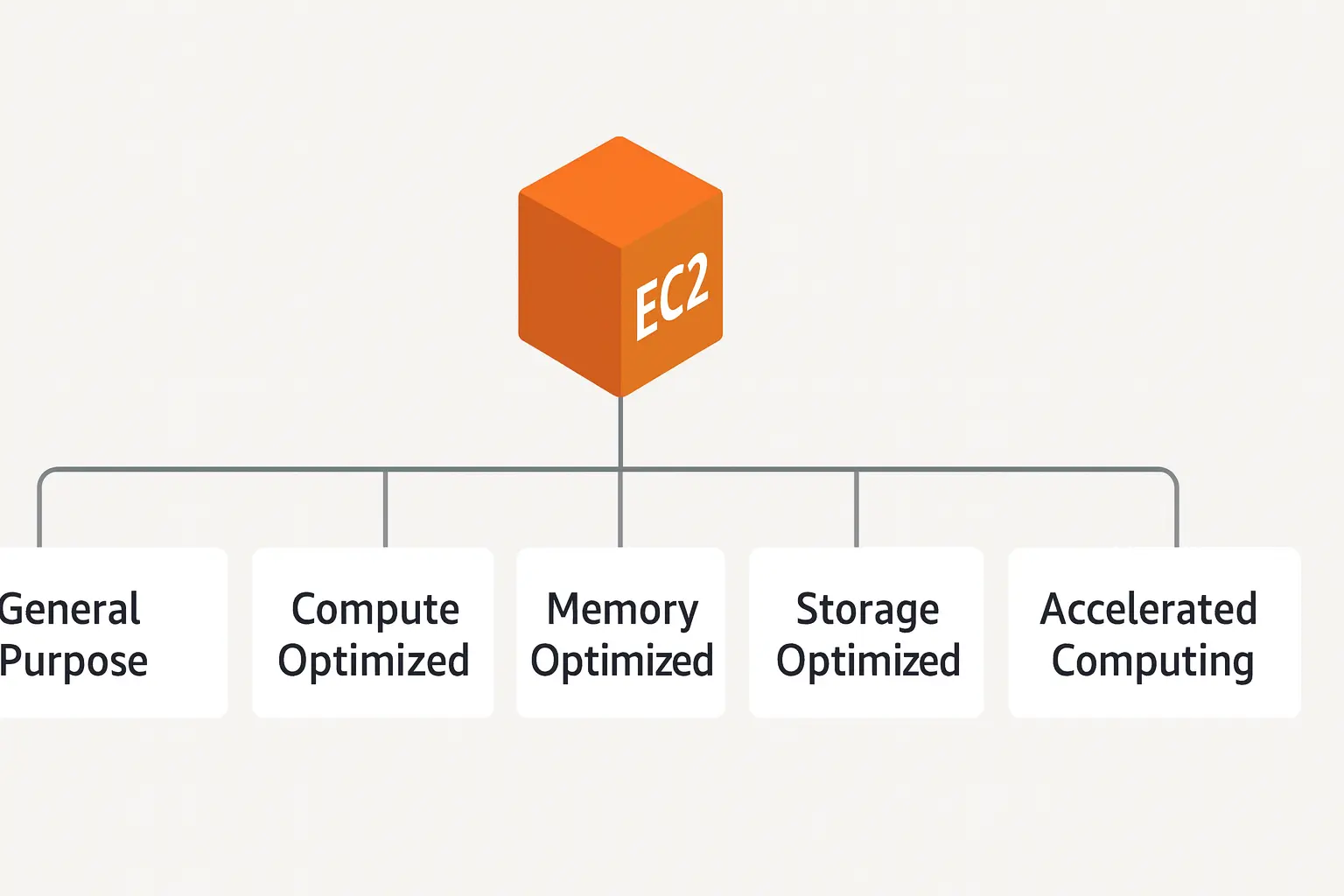
Categories of EC2 Instance Types
Before diving into the details, it's important to understand that each EC2 category is built to solve a specific workload challenge. These categories provide clarity so you can quickly map your use case to the right family.
General Purpose
Balanced CPU, memory, and networking.
Use cases: web servers, small databases, development environments.
Example: t3, m5 families.
Compute Optimized
High-performance processors for compute-heavy tasks.
Use cases: gaming servers, scientific modeling, batch processing.
Example: c5 family.
Memory Optimized
Large memory capacity for handling data-intensive applications.
Use cases: in-memory databases, real-time big data analytics.
Example: r5, x1 families.
Storage Optimized
High disk throughput and IOPS (input/output operations per second).
Use cases: large databases, data warehousing, analytics on massive datasets.
Example: i3, d2 families.
Accelerated Computing
Hardware accelerators such as GPUs or FPGAs for specialized tasks.
Use cases: machine learning, high-performance computing, 3D rendering.
Example: p3 (GPU), f1 (FPGA).
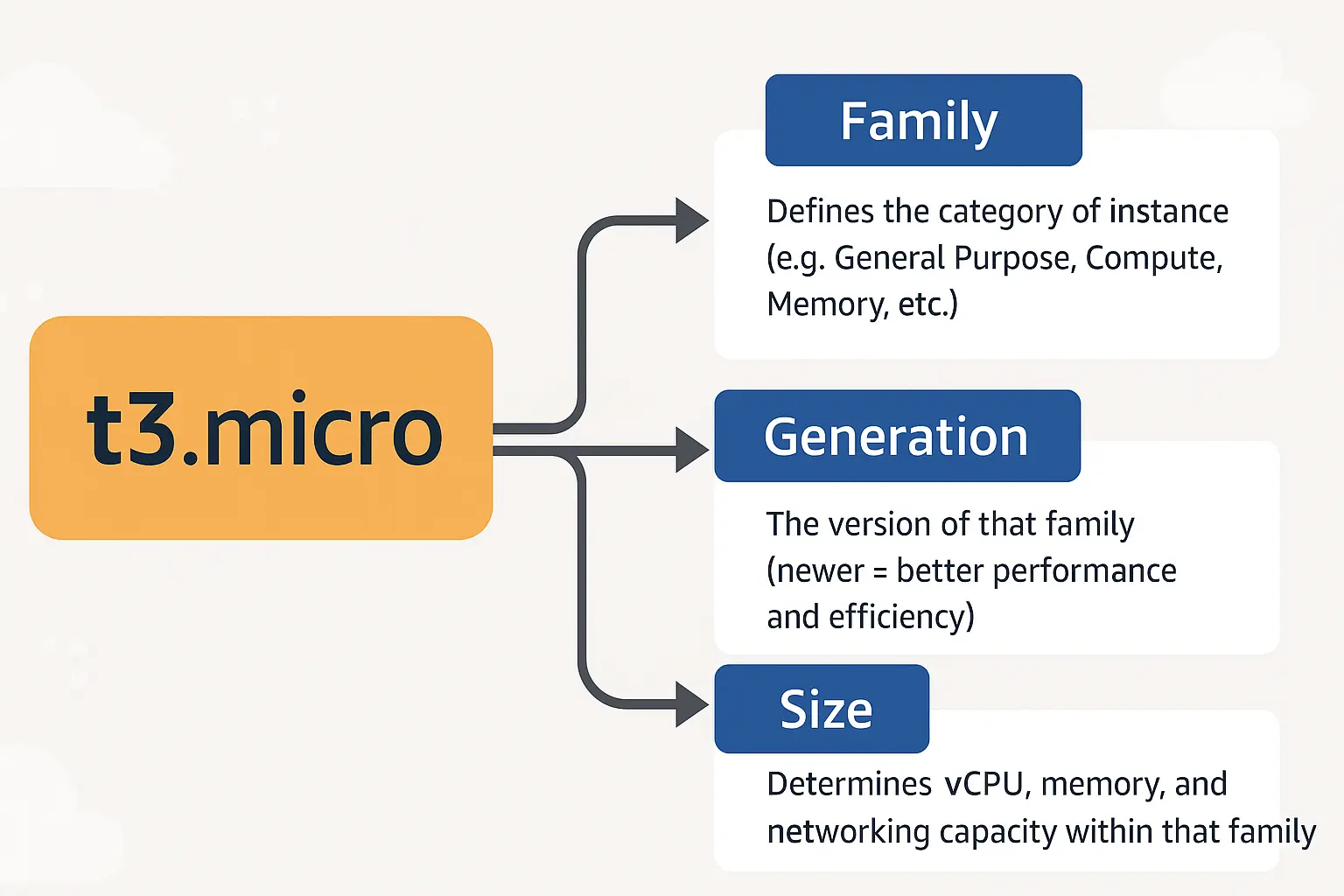
Naming Convention
An instance type name (e.g., t3.micro) consists of:
Family (t = general purpose, c = compute optimized, r = memory optimized).
Generation (3 = third generation).
Size (micro, small, large, xlarge, etc.).
EC2 Storage
Imagine your EC2 instance as a laptop. Just like a laptop needs storage to save files, applications, and data, an EC2 instance also needs storage to function. However, unlike a laptop with a single hard drive, AWS offers multiple storage options tailored to your workload.
Elastic Block Store (EBS)
- Persistent block storage volumes that can be attached to EC2 instances.
- Behaves like a traditional hard drive.
- Volumes are network-attached and can survive instance stop/start cycles.
- Common types: General Purpose SSD (gp3), Provisioned IOPS SSD (io1/io2), Throughput Optimized HDD (st1), Cold HDD (sc1).
When to Use: Databases, file systems, applications requiring persistence.
Instance Store
- Definition: Instance Store provides temporary block-level storage that is physically attached to the host machine running the EC2 instance. This means the storage is located on disks that reside directly on the same server hardware, offering very high input/output (I/O) performance.
- Instance Store is ideal for workloads that need extremely fast access to data or that can tolerate data loss. Because it’s physically attached, latency is lower and performance is higher compared to network-based storage. It’s commonly used when data persistence isn’t a requirement.
Key Features:
Ephemeral Storage – Data exists only during the instance’s lifecycle. If the instance stops, hibernates, or terminates, the data is lost.
High Throughput – Provides faster read/write performance since it’s local to the host.
Low Latency – Ideal for temporary files, caches, and buffers.
No Additional Cost – Instance Store is included in the instance price.
Limited Flexibility – Can’t be detached or reattached to other instances.
When to Use: Best for workloads like caching, temporary data storage, buffers, or scratch space where performance matters more than persistence.
Elastic File System
Definition: Amazon EFS (Elastic File System) is a fully managed, elastic, and scalable file storage service that can be mounted simultaneously by multiple EC2 instances across different Availability Zones. It acts as a shared file system that grows and shrinks automatically as files are added or removed.
Why It’s Needed: Many workloads, such as content management systems and data analytics platforms, require multiple servers to access the same set of files. EFS eliminates the need for manual scaling or managing shared storage, providing seamless and concurrent access with high availability.
Key Features:
Scalable and Elastic – Automatically adjusts storage capacity based on usage.
Shared Access – Multiple EC2 instances can read and write to the same file system at the same time.
High Availability and Durability – Data is stored across multiple Availability Zones.
Managed Service – AWS handles backups, scaling, and maintenance.
Secure – Supports encryption at rest and in transit, and integrates with IAM for access control.
Pay-for-Use – Pay only for the storage used, no upfront provisioning.
When to Use: Ideal for shared file storage, web content hosting, enterprise applications, or any workload that requires consistent access from multiple servers.
Amazon FSx
Amazon FSx is a family of fully managed file systems that deliver high-performance storage built on popular and specialized technologies such as Windows File Server and Lustre. It provides scalable, reliable, and cost-effective storage for workloads that require specific file system features.
Some applications require file systems with advanced features like SMB protocol support for Windows environments or high-speed access for compute-intensive workloads. Amazon FSx eliminates the complexity of deploying and managing these specialized file systems manually.
Key Features:
Fully Managed – AWS handles provisioning, patching, and maintenance.
High Performance – Designed for latency-sensitive and I/O-intensive workloads.
Multiple Variants – Supports FSx for Windows File Server (for Windows applications) and FSx for Lustre (for high-performance computing and ML workloads).
Seamless Integration – Integrates with AWS Directory Service, EC2, and S3.
Scalable and Reliable – Automatically scales to meet performance needs and ensures data durability.
Secure – Offers encryption, access control, and network isolation through VPC.
When to Use: Ideal for Windows-based workloads requiring SMB protocol support, HPC workloads, machine learning, media processing, and analytics pipelines.
Choosing the Right Storage
AWS offers multiple storage options for EC2, each designed to handle specific performance, durability, and accessibility requirements. Choosing the right one ensures optimal performance and cost-efficiency for your workload.
How to Decide:
EBS → Best for applications that require persistent, high-performance block storage such as databases and OS disks.
Instance Store → Ideal when you need fast, temporary storage for transient data or caching purposes.
EFS → Perfect for workloads that need shared, scalable file storage accessible by multiple EC2 instances at once.
FSx → Recommended for specialized workloads that require Windows file systems or high-performance parallel file systems.
Key Considerations:
Persistence – Does the data need to survive instance termination?
Access Type – Will the data be used by one instance or multiple?
Performance Needs – Is low latency or high throughput more important?
Cost Efficiency – Are you optimizing for cost, durability, or scalability?